How you can use TestGorilla assessments within the Greenhouse ATS
You can connect TestGorilla to your Greenhouse account, allowing you to invite candidates to an assessment and see the summarized results inside Greenhouse. The Greenhouse integration is available on the Plus plan and can be enabled by users with Owner or Admin access.
| Important: Please check with Greenhouse regarding the plan and access level needed on their side to make this work. |
Approx. reading time 3 minutes
In this article
Set up the integration
The integration between Greenhouse and TestGorilla is set up from inside your TestGorilla account.
Connect the integration
You must be a TestGorilla Admin or Owner to be able to complete this step.
| What's new (July 2026): The connection flow has been updated. Greenhouse is now powered by Kombo, giving you a faster and more reliable setup. The steps below replace the previous support ticket process. |
-
Find your Greenhouse subdomain:
Go to your Greenhouse login page and copy your login domain. It will look something like: app6.greenhouse.ioGreenhouse login page — note your subdomain in the address bar (e.g. app6.greenhouse.io) -
Share your API key and stage name with your Greenhouse Account Manager
Inside TestGorilla, you will see the Kombo connection flow. Copy the API key and integration stage name shown there.Copy both the API key and stage name from the Kombo connection flow Then email your Greenhouse Account Manager with those details. You can use this template:
Dear [Greenhouse Account Manager name],
We would like to set up a new assessment integration for our Greenhouse account. Could you please take the following API key and create a stage with the following name:
API key:
[paste your API key here]
Stage name:[paste your stage name here]Thanks and let us know if you need anything else!
Best,
[Your name] -
Complete the connection in TestGorilla
Once your Greenhouse Account Manager confirms the stage has been created, return to TestGorilla and click Set up integration to finish.
Click "Set up integration" in TestGorilla once your Account Manager confirms the stage is ready
Configure the integration
You'll need to check with Greenhouse to ensure you have the right plan and access level to continue. After your integration has been activated, you can add TestGorilla to your interview plan. From within your Greenhouse account:
| Select All Jobs from the top toolbar. | |
|
Select the relevant Job Name. |
|
|
Click the Job Setup tab. |
|
|
Select Interview Plan from the left toolbar. |
|
|
Click +Add a Stage |
|
|
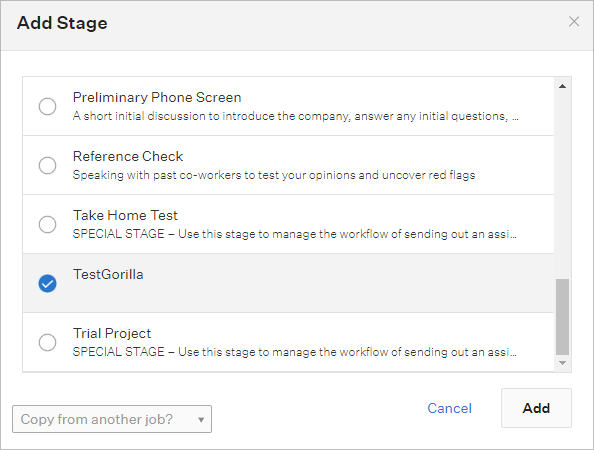
Choose TestGorilla from the list, and click Add.
|
Use the integration
After you connect and configure the integration, you can invite candidates and review results within Greenhouse.
Select assessment
Add a TestGorilla assessment to your Interview Plan before inviting candidates:
|
|
Within Greenhouse, navigate to the Interview Plan of your job using steps 1-4 listed above. |
|
|
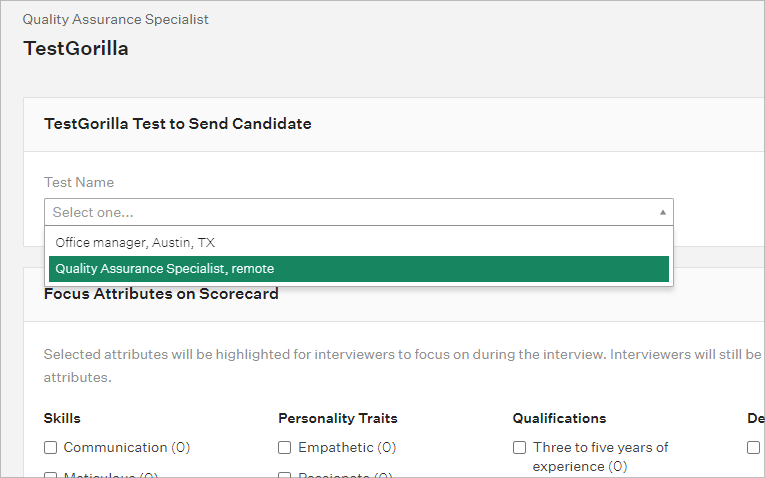
On the TestGorilla stage, click Edit. |
|
|
Select the required TestGorilla assessment from the Test name dropdown menu.
|
|
|
Assign at least one Greenhouse user to review the assessment results. |
|
|
Click Save to finish. |
Invite candidates
Invite candidates to an assessment directly from Greenhouse:
|
|
From your candidate’s Greenhouse record, select Stages from the left toolbar. |
|
|
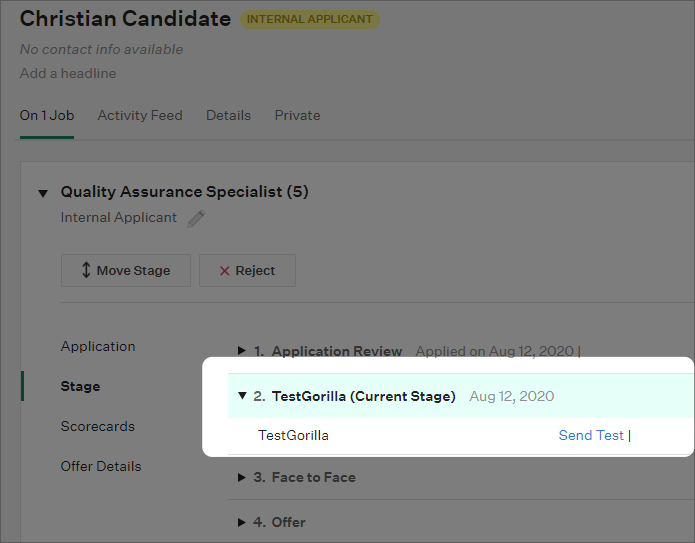
Click Move Stage to move to the TestGorilla stage. |
|
|
Click Send Test.
|
|
|
In the popup box, confirm the candidate’s email address and assign a grader. |
|
|
Click Send Test to send the invitation. |
Review results
Candidate results appear in Greenhouse in the TestGorilla hiring stage once the assessment is completed. This synchronization happens every 30 minutes.

The results panel includes:
- A link to their candidate page in TestGorilla
- An overall summary of their results (score out of 100)
- A score for each test in the assessment (score out of 100)
- Anti-cheating flags, listed as Yes/No
To view the full results, click View Report to open the candidate results page inside of TestGorilla.
Disable the integration
If you no longer want to use the Greenhouse integration, you can disable it:
|
|
In TestGorilla, click your name in the top right corner of the browser and select the Integrations option from the drop-down menu. |
|
|
Click the Disable button on the Greenhouse integration. |
|
|
Click the Disable button on the confirmation popup. |
Common questions
Why aren’t my TestGorilla assessments appearing in Greenhouse?
ATS integrations will only recognize assessments created after the integration is enabled. Greenhouse will only recognize assessments that you’ve specifically indicated you would like to use within Greenhouse. You will need to create a new assessment to send via Greenhouse.
Why doesn’t the Integrations tab appear in my user menu?
Because integrations can only be enabled or disabled by the Account owner or an Admin, the tab is only available to those users.
Do I need to do anything for the new Kombo-powered connection?
If you are an existing Greenhouse customer, no action is required — your integration has been automatically upgraded. New customers should follow the updated setup steps in this article.